Screen-printed transfers, DTF and UV DTF stickers for your professional textiles and objects



File formats: .AI, .PSD, .PDF, .EPS. Which format for your online prints?
"That’s not the right shade of red", "the image isn’t sharp", "can we start over?" Too often, problems are only noticed once the file has been printed, even though the original file seemed perfect. The main reason is the quality of the original files and the use of formats not suited to the need. This is why we decided to take a closer look at the different image formats to use for printing.
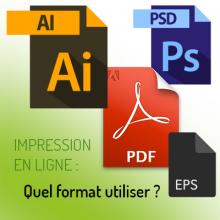
AI, PDF, PSD files… each format has its purpose! Are they all equal? What are the differences? Which format for which use?
Let’s start by looking at the difference between the two main file formats: vector (with paths) and raster (with pixels).
Vector VS Raster
The vector file
A vector file is based on geometric logic, mathematical formulas, and a coordinate system. Therefore, a vector file is a file composed solely of geometric shapes and paths.
These lines are not pixelated and the edges are smooth. The elements in the file can be scaled up or down without affecting their quality.
Vector files (AI, PDF and EPS from AI, SVG…) are widely used in graphic design and printing.
The raster file
A raster file, on the other hand, takes the form of a large grid made up of pixels. Pixels are small coloured squares, invisible to the naked eye, which together form a unified whole: your image.
When a low-resolution raster image (few pixels per cm²) is enlarged, the squares become bigger, the edges less precise and the image becomes blurry. This is commonly called "pixelation".
This is, apart from the composition of each file itself, the main difference between vector and raster.
Raster format files (PSD, JPG, PNG, PDF and EPS from PSD, etc.) are used for photography, websites and social media.
For the best possible result, it is preferable to use a vector file for logos and text (sharp edges, scaling without quality loss). For a photo, use a raster file with good resolution.
A closer look at different file formats
There are many file formats. We have chosen to focus on the 4 formats we use most: AI, PSD, PDF and EPS.
The AI format
.AI files are generated by the most popular vector design software today, Adobe Illustrator.
An .AI file contains the shapes representing the original creation. This format allows for a file made up of several vector layers and is editable.
Note: it is possible to import a raster file into this vector file.
Use case: design creation and high-quality printing of logos, text, etc.
The PSD format
The .psd format (Photoshop document) is a raster file generated by Photoshop. The .psd format consists of a set of raster layers (pixels).
For the best possible print, it is advisable to use a good resolution (300 pixels/inch).
Use case: the PSD format is used primarily for images that cannot be vectorised, such as photos.
The PDF format
This is the vector or raster format most commonly used by printers.
Note: many applications offer PDF export. However, to qualify as a true vector file, the file must have been exported from a vector application. For example, if you export a PSD file as a PDF, the result will not be a true vector PDF.
Use case: the PDF format is used for visual communication tools, logos and high-quality printing.
The EPS format
The .eps format (Encapsulated PostScript) is the predecessor of PDF. Once widely used in professional environments, this format preserves the vector attributes of a file. Today, .eps has largely been replaced by .pdf, which is considered more flexible.
Use case: Unless you have specific habits with your printer, the .eps format is no longer commonly used.
You now know the main formats for your print files and their differences. To summarise briefly, favour vector formats as much as possible (via .AI or .PDF from .AI) and .psd formats for photos. For more information, find our tips for preparing your files before printing.